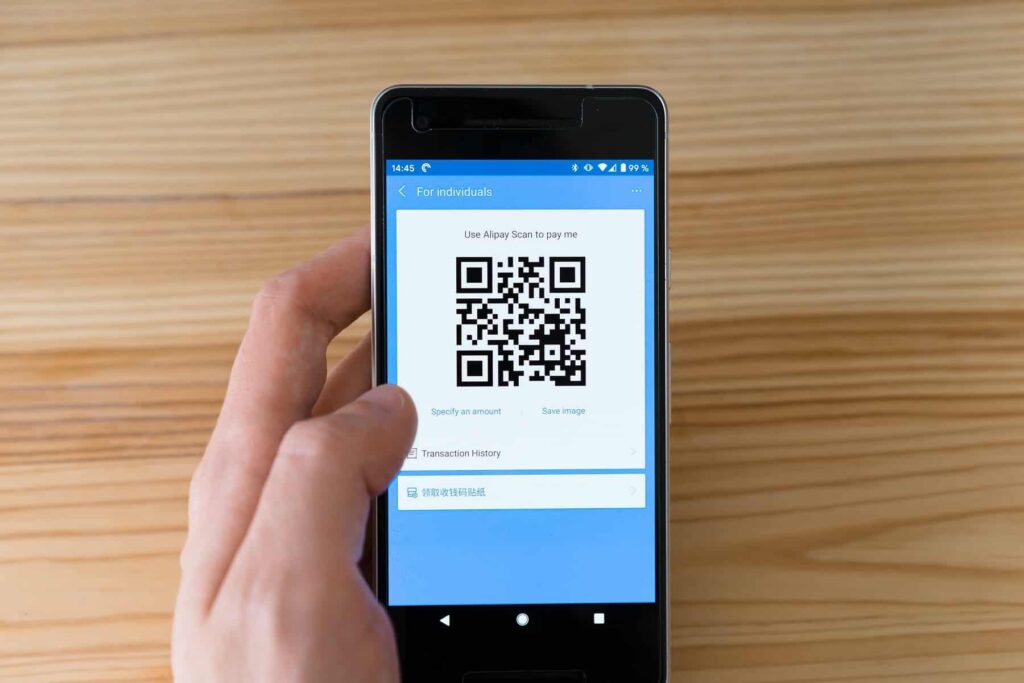
Adding the business QR code to your iOS wallet pass is an incredibly easy task to accomplish. This article would be the complete guide to adding your QR code to your iOS wallet without any hassle. Read till the end to learn about it in detail. Before hopping on to the process of adding the QR code to Apple wallet, you need to get brief information about the QR code and iOS wallet pass.
Do you know what is a QR business code?
The QR code consists of various black unique and strange-looking patterns that are not understandable with the bare human eyes. But, once this code is scanned, the barcode embedded on the business card gets simplified into the language understood by humans. These black patterns consist of pieces of information combined which helps the company to run its business effectively and effortlessly. However, these QR codes are highly customizable. Hence, you can customize them in the way you want to make your customers land on the page you require them to land on. QR codes hold an incredible amount of data and are very easy to work with. Moreover, you can access all your business information within seconds if you generate a business QR code.
What is an iOS wallet pass and why do you need it?
The iOS wallet pass is used to store a lot of information in an integrated manner which is otherwise difficult to manage. For instance, you can store all your cards, rewards, coupons, etc on your iOS wallet pass in a combined way. Besides this, to make things more convenient, you can store your coffee cards, food cards, event tickets, movie tickets, etc on this pass. It often becomes a big deal to keep all the details of your flight in mind. But, if you stick to your apple wallet pass, you can even store your flight tickets and information in it. As a result, you would never again be perplexed or stressed to retrieve the details. So, overall, the apple wallet pass is a great measure to opt for if you face immense trouble in keeping track of all your important information.
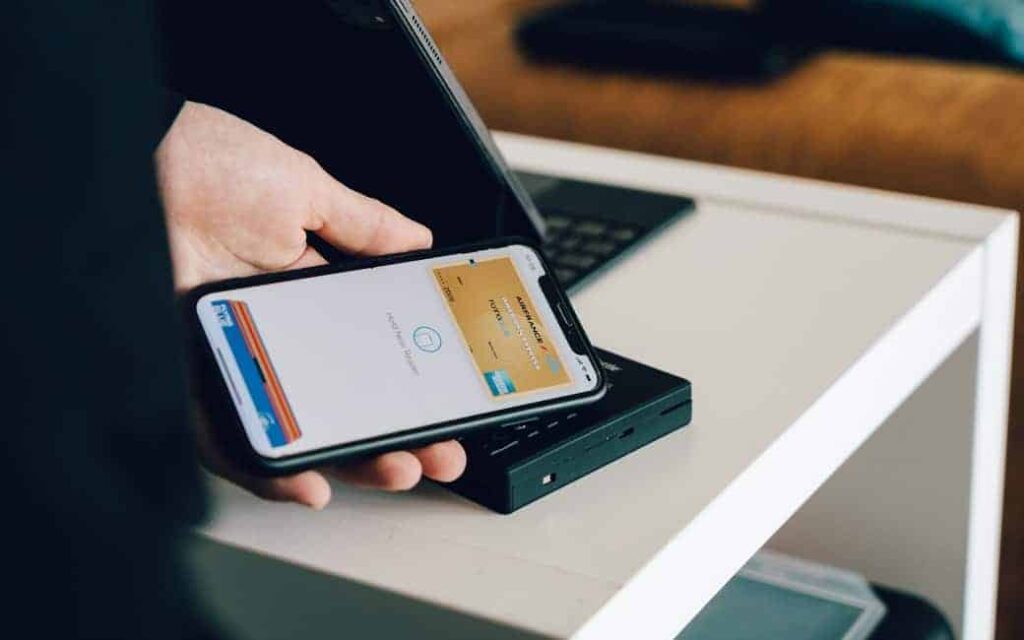
Steps to add your QR business code to your iOS wallet pass
Follow the below-mentioned steps to successfully add a QR code to your Apple wallet within a snap of your eye:
- The first step: The first step of adding the QR code to the Apple wallet includes generating the QR code. For this, you will need to use your laptop or PC as generating the code from your mobile won’t work in this case. Log on to a QR code-generating website and input all the necessary information required. The information you would require to provide on the website is primarily your name, contact number, home address, email ID, the name of your company, your ranking, and website details. Here you can also use the beaconstac QR code generator to experience additional options. Once you have completed all these sections, you must select the barcode size and character encoding. Next up, you will need to click on the generate option given below to continue with the process.
- The second step: The second step includes generating the business card. For this, open the Wallet Creator from the App Store by at2 GmbH. Next up, fill up the following sections very cautiously to avoid any sort of mistake:
- Name of the individual
- Name of your company
- Name of the designation
- Email address of the individual
- Contact info of the individual
After completing the above steps, look for the plus sign (‘+’) sign given below and press on it to add a barcode to your Apple wallet.
- The third step: Though the business card is now ready to be used, you can add a bit of creativity to make it look even more appealing and attractive. To give a vibrant and dynamic look to your business card, you will need to input the hexadecimal values of the colors. Select the background option in the wallet creator application and input the hexadecimal value of the color you are looking forward to using.
- The final step: This is the concluding step of this entire procedure. Once you have imported all the necessary information and done the required customizations, you are all set to add your QR code to Apple wallet. Press on the save option and move your cursor to the top of the computer screen. Here you will find the option, ‘Add To Apple Wallet ‘. Select the option and your code would be easily added. Now you can add all your company’s information in the pk pass file format.
Conclusion
So, this was the entire procedure to add your QR code to Apple wallet successfully. Follow this procedure and add QR code to Apple wallet to make your life easier by storing all your important company information in a single platform.
FAQs
Privacy: The primary reason people resort to using an iOS wallet pass is its security factor. Without proper privacy, it is meaningless to use any online platform. The iOS wallet pass has immensely built-in privacy and security to keep all your information integrated into a single platform without any extra hassle.
Another important reason associated with using the Apple wallet pass is its convenience factor. You can keep a record and track of all your business cards, coupons, event tickets, movie tickets, flight tickets, boarding passes, food card balances, and all other information related to your company in it.
Not only the iOS wallet pass is easy to use and secured, but it also offers a super easy checkout option. For instance, here you won’t have to use any card or cash. You can carry on with your transactions online easily without undergoing any unnecessary trouble. Also, the iOS wallet pass is easily accepted on multiple platforms all around the globe making it a highly versatile option to opt for.
Yes, you can save your business card to your iOS wallet pass. All you need to do is open the rear camera of your iPhone and scan your QR code which consists of all the information related to your business or company. It will directly load your business card into the Apple wallet and save your business card effortlessly.